The command-line workflow runs JavaScript Obfuscator with no window, using the project settings you already configured in the desktop application. It is built for repeatable, scripted builds — the obfuscator protects every enabled file in the project and returns an exit code your build step can branch on.
Typical workflow
- Create a project in the desktop app and add the files you want to protect.
- Configure the protection options in the GUI and confirm the API key under Tools > API Key — the saved project carries the credentials, so the command-line run authenticates without prompting.
- Save the project (it is written as a
.jsoproj file). The command line reuses this file.
- Open Tools > Command Line, tick the options you want, and copy the generated command.
- Paste the command into a script, scheduled task, or CI/build step.
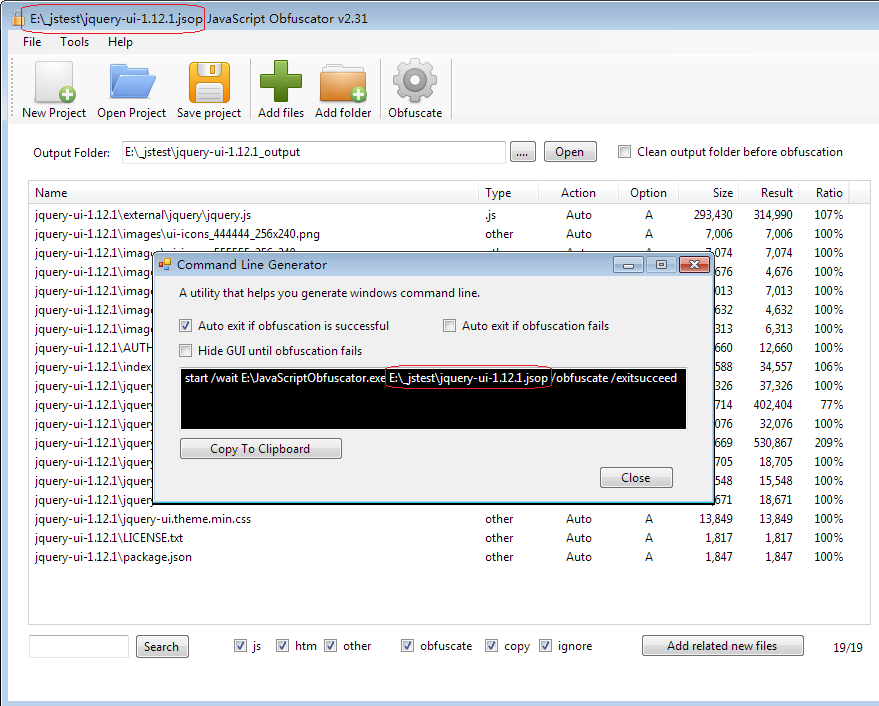
Anatomy of the command
The dialog generates a command in this shape:
start /wait "C:\path\to\javascriptobfuscator.exe" "C:\path\to\project.jsoproj" /obfuscate /exitsucceed /exitfailed /hide
start /wait — launches the obfuscator and waits for it to finish so the exit code propagates back to your script.- The first path is the obfuscator executable; the second is your saved
.jsoproj project file.
/obfuscate — runs the obfuscation headlessly (no window). Required; without it the app just opens the GUI./hide — runs with no window. Recommended for unattended/CI use./exitsucceed / /exitfailed — accepted for compatibility with scripted runs; the process always exits when the headless run finishes and reports its result through the exit code below.
Exit codes
The process returns a standard exit code so a build step can stop the pipeline on failure:
- 0 — every enabled file in the project was protected successfully.
- 1 — one or more files failed, or the run could not start (project file missing, authentication failed, plan limit reached, etc.).
With start /wait, that code surfaces as %ERRORLEVEL% in a batch script or $LASTEXITCODE in PowerShell.
Example: build script
Run your normal build first so the final browser assets exist, then protect them and fail the build if protection fails:
@echo off
:: 1. Produce the JavaScript you intend to ship
call npm run build

:: 2. Protect the built assets using the saved project
start /wait "C:\Tools\JSObfuscator\javascriptobfuscator.exe" "C:\proj\release.jsoproj" /obfuscate /hide
if %ERRORLEVEL% neq 0 (
    echo Obfuscation failed.
    exit /b 1
)

:: 3. Continue only when protection succeeded
echo Protected output ready. Publishing...
PowerShell equivalent:
npm run build
Start-Process -Wait "C:\Tools\JSObfuscator\javascriptobfuscator.exe" `
    -ArgumentList '"C:\proj\release.jsoproj"','/obfuscate','/hide'
if ($LASTEXITCODE -ne 0) { throw "Obfuscation failed." }
Where it belongs in automation
Run the command after your normal build produces the JavaScript files you plan to ship. Let your existing toolchain emit the final browser assets first, then protect those output files.
Build app
Generate JavaScript assets
Run the obfuscator command  (fails the build on non-zero exit)
Test protected output
Publish release artifacts
Keep the project file private. A .jsoproj stores the API credentials it uses to authenticate. Treat it like a secret: give your build agent access to it, but do not commit it to a public repository. Rotate the key from your dashboard if a project file is ever exposed.
Related guides
If you are deciding how the desktop project fits into a broader release process, continue with Build and Release Workflows. If your application exposes public names or shared identifiers, also review Variable Exclusion List and the cross-file guides.